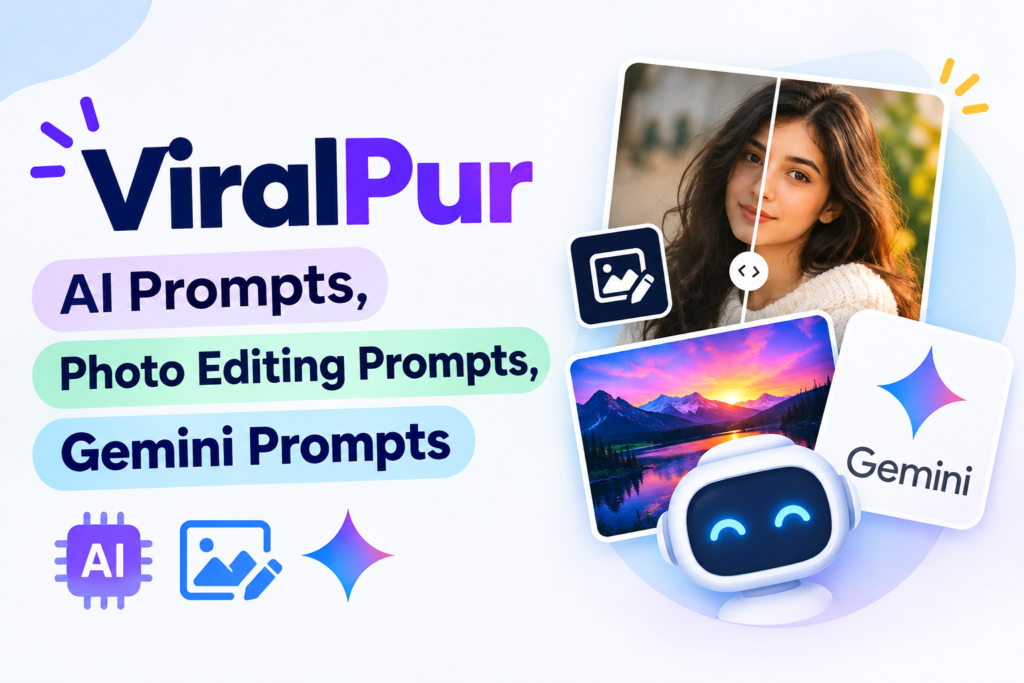
ViralPur: AI Prompts, Photo Editing Prompts, Gemini Prompts
The ViralPur trend has become popular among people who love AI photo editing, creative images and trending social media content.
You can find ready-to-use prompts for different types of AI photos and videos. These prompts can help you turn a normal picture into a cinematic portrait, stylish DP, poster or another creative image.
The good part is that you do not need advanced Photoshop skills for many of these edits. You can upload your photo to an AI tool, paste a suitable prompt and generate a new version.
I have noticed that small changes in a prompt can completely change the final image. Changing the lighting, background or camera style can give the same photo a very different look.
In this guide you will learn what ViralPur is, what type of prompts you can find there and how to use them for AI photo and video editing.
What Is ViralPur?
ViralPur is an online content website that publishes trending AI prompts and other digital information.
The Prompts section is one of the main parts of the website. It currently includes AI photo editing prompts, AI video prompts, Gemini prompts, DP prompts and different social media photo ideas.
The website also has categories such as Smart Phone, Automobile, Tech and Cricket.
But AI prompts are a major part of its current content.
What Can You Find on ViralPur?
There are different types of prompts available on ViralPur.
Common topics include:
- AI photo editing prompts
- AI image prompts
- AI video prompts
- Gemini prompts
- Instagram photo prompts
- DP prompts
- Poster editing prompts
- Trending social media prompts
- Cinematic photo prompts
- Creative image ideas
The website has also published prompts around themes such as Krishna, Shiva, cricket stadiums, horror photos, underwater wallpapers, birthday photos and Instagram trends.
ViralPur AI Photo Editing Prompts
AI photo editing is one of the biggest uses of these prompts.
You can upload your own picture and tell the AI how you want it to look.
1. Cinematic Lighting
Turn this photo into a cinematic portrait with dramatic yet natural lighting. Add soft highlights on the face, subtle shadows, and a professional movie-like atmosphere. Keep the original face, skin texture, facial features, and body shape unchanged. Make the image realistic, sharp, and visually balanced.
2. New Background
Replace the background with a beautiful modern outdoor setting that naturally matches the subject. Use realistic depth of field, soft lighting, and natural colors. Keep the original person, face, skin texture, pose, and body shape unchanged. Make the final image look realistic and professionally photographed.
3. Better Image Quality
Enhance the overall quality of this photo. Improve sharpness, clarity, lighting, details, and resolution while keeping the image natural and realistic. Reduce blur and noise without making the skin look artificial. Keep the original face, facial features, skin texture, pose, and body shape unchanged.
4. Stylish Outfit
Change the outfit to a stylish and modern fashion look that suits the person naturally. Use clean colors, realistic fabric details, and a polished appearance. Keep the original face, hairstyle, skin texture, pose, body shape, and natural features completely unchanged. Make the outfit look realistic and professionally styled.
5. Movie-Poster Look
Turn this photo into a stylish cinematic movie poster. Add dramatic lighting, a polished background, subtle cinematic effects, and strong portrait framing. Use a premium movie-poster atmosphere while keeping the original face, facial features, skin texture, and body shape unchanged. Make it realistic, sharp, and visually striking.
6. Sunset Scene
Place the subject in a beautiful sunset setting with warm golden-hour lighting. Add a soft orange and pink sky, natural background blur, and realistic sunlight falling gently on the subject. Keep the original face, skin texture, facial features, pose, and body shape unchanged. Make the final image natural and cinematic.
7. Professional Portrait
Turn this photo into a professional portrait suitable for a profile, portfolio, or professional website. Use clean lighting, a simple elegant background, balanced colors, and sharp facial details. Keep the original face, skin texture, facial features, hairstyle, and body shape unchanged. Make it realistic and professionally photographed.
8. Social Media Profile Picture
Create a stylish social media profile picture from this photo. Use a clean modern background, soft flattering lighting, natural colors, and a sharp professional portrait composition. Keep the original face, facial features, skin texture, hairstyle, and body shape unchanged. Make the image attractive, realistic, and suitable for a profile picture.
How to Use ViralPur Prompts
Using a prompt is quite simple.
Step 1: Choose a Prompt
Find a photo or video prompt that matches the style you want.
Step 2: Open Your AI Tool
You can use a compatible AI image or video tool.
The exact features depend on the platform.
Step 3: Upload Your Photo
If the prompt is for photo editing, upload a clear image.
A front-facing photo usually works better when the prompt needs accurate facial details.
Step 4: Copy the Prompt
Copy the prompt and paste it into the AI tool.
Step 5: Generate the Image
Let the tool create the result.
You may need to try the prompt more than once.
Step 6: Make Small Changes
If the result is not right, change one or two details.
You can adjust the background, lighting, clothes or camera angle.
How to Write a Better AI Prompt
You do not need to write a very complicated prompt.
A simple structure works well:
Subject + Background + Style + Lighting + Camera + Details
For example:
“Create a realistic portrait of me in a neon city at night. Use purple and blue lighting with a cinematic camera look. Keep my original face and natural features unchanged.”
This gives the AI a clear idea of what you want.
How to Keep Your Face Unchanged
This is one of the most common problems with AI photo editing.
Sometimes the AI changes the face too much.
You can reduce this by adding instructions such as:
- Keep the original face unchanged
- Preserve facial features
- Keep the same skin tone
- Do not change the hairstyle
- Maintain the original identity
- Keep natural facial proportions
It does not guarantee a perfect result every time, but it gives the AI clearer instructions
Popular ViralPur Prompt Ideas
If you are not sure where to start, these ideas can help.
Instagram Profile Picture
Use a clean portrait with professional lighting and a simple background.
Cinematic Photo
Add dramatic lighting, shallow depth of field and a movie-style colour tone.
AI Poster
Describe the main subject, background and poster layout.
Cricket Photo
Add a stadium, team jersey, crowd and realistic sports photography style.
Religious Theme
Describe the environment, lighting and visual mood while keeping the person’s face natural.
Couple Photo
Describe the location, clothing, pose and overall atmosphere.
AI Photo Editing Tips
AI can create impressive results, but the first generation may not always be perfect.
These simple tips can help:
- Start with a clear photo.
- Do not add too many ideas at once.
- Tell the AI what should remain unchanged.
- Use specific lighting instructions.
- Describe the background clearly.
- Generate more than one version.
- Change small details when refining the result.
A simple prompt often works better than putting too many unrelated instructions together.
Common AI Prompt Problems
Face Looks Different
Your original image may not have enough facial detail.
Try a clearer photo and add identity-preservation instructions.
Background Looks Strange
The AI may not understand a vague background description.
Describe the location and lighting more clearly.
Image Looks Too Artificial
Try asking for natural skin texture and realistic lighting.
You can also remove unnecessary style instructions.
Hands or Fingers Look Wrong
AI image tools can still make mistakes with hands.
Try generating another version or use a simpler pose.
Too Many Details
A very long prompt with conflicting instructions can create a messy result.
Remove details that are not important.
Is ViralPur Useful for Beginners?
Yes, ready-made prompts can make AI photo editing easier for beginners.
Instead of learning complicated editing software first, you can start with a prompt and see how the AI responds. This can be useful when creating images for social media platforms or content related to Facebook Mod APK.
After that, you can change small parts of the prompt and learn what each instruction does.
This is a simple way to understand AI image generation through practice..
Can You Edit ViralPur Prompts?
Yes.
You do not have to use every prompt exactly as it appears.
You can change things like:
- Clothes
- Background
- Lighting
- Location
- Camera angle
- Colour tone
- Mood
- Image ratio
For example, you can take a cinematic portrait prompt and change the background from a city street to a beach.
The basic structure can stay the same.
Are AI Photo Prompts Safe?
Using an AI photo prompt is generally just an instruction for an AI tool. If you are exploring AI photo editing tips on Lapzoo Com, the bigger concern is the photo you upload.
If you are using your own picture, check the AI platform’s privacy rules before uploading it.
Avoid uploading private images that you would not want stored or processed by an online service.
Also avoid using someone else’s photo without permission.
ViralPur for Social Media Photos
Many people use AI-generated images for social media.
A good prompt can help create:
- Instagram profile photos
- Facebook posts
- WhatsApp DPs
- YouTube thumbnails
- Reel covers
- Poster images
- Creative status pictures
ViralPur’s current content includes several prompts specifically connected with Instagram, social media and DP trends.
Final Thoughts
ViralPur is useful if you enjoy trying AI photo editing prompts, Gemini prompts and AI video prompts.
You can start with a ready-made prompt and then change small details to create your own version.
The key is not to make the prompt complicated. Start with a clear photo, explain the look you want and tell the AI which parts of the original image should stay unchanged.
If the first result does not look right, change one detail and generate again.
That simple process can help you get much better results without spending hours on manual photo editing.
Frequently Asked Questions
Hi, I’m Vikram Ashwin, a technology writer who enjoys covering useful apps, digital tools, photo editing trends, and the latest tech topics. My goal is to share clear information, useful tips, and straightforward explanations without unnecessary technical language.