
Google Flow Video Codes: Best Prompts & Commands for Cinematic AI Videos In 2026
Making an AI video can look easy until you actually try it. You write a simple sentence, generate the clip and sometimes the result looks nothing like what you had in mind. The camera moves in the wrong direction, the subject changes position or the scene simply feels flat.
This is where Google Flow Video Codes can be useful. These short prompt-style instructions can help you describe camera movement, lighting, composition, motion and visual effects more clearly. Instead of telling Flow only what you want to see, you can also explain how you want the scene to look and move.
Google Flow itself works with detailed natural-language prompts. Google recommends describing the subject, action, environment, lighting and style. You can also use images, videos, ingredients and start or end frames as references.
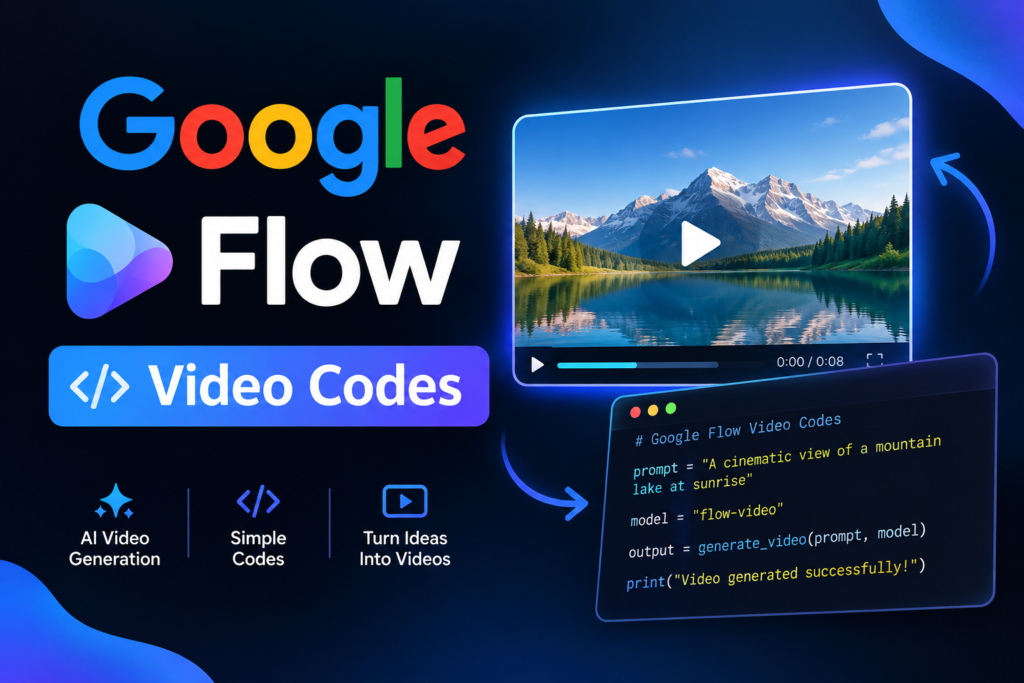
What Are Google Flow Video Codes?
Google Flow Video Codes are short creative instructions used to guide an AI video generation idea. They can describe things such as a camera moving closer to a subject, following someone while they walk or slowly revealing a product.
You may see codes written in formats such as /dollyin, /orbit, /closeup or /tracking on different websites. However, these should not automatically be treated as official Google Flow commands. They are better understood as prompt shortcuts or ideas that you can express naturally inside a Flow prompt.
For example, instead of depending on a special code, you can simply write:
A black sports car drives through a wet city street at night. The camera slowly moves closer to the car from a low angle. Neon lights reflect on the road and the scene feels like a cinematic car commercial.
That gives Flow much more useful information than simply writing “make a cool car video.”
Why Use Google Flow Video Codes?
The biggest benefit is that they help you think about the video like a filmmaker.
A beginner often focuses only on the subject. For example, you might write, “A man walks through a city.” That tells the AI what is happening but leaves many visual decisions open.
A better prompt can describe the person, movement, location, camera position, lighting and mood. This gives you more control over the final clip and makes it easier to create different versions of the same idea.
These prompt ideas are also useful when you are making product ads, YouTube videos, social media reels, short films, travel clips or cinematic scenes.
Google Flow Video Codes for Camera Movement
Camera movement can completely change how a scene feels. A simple product shot can look premium with a slow push-in, while a fast tracking shot can make an action scene feel much more energetic.
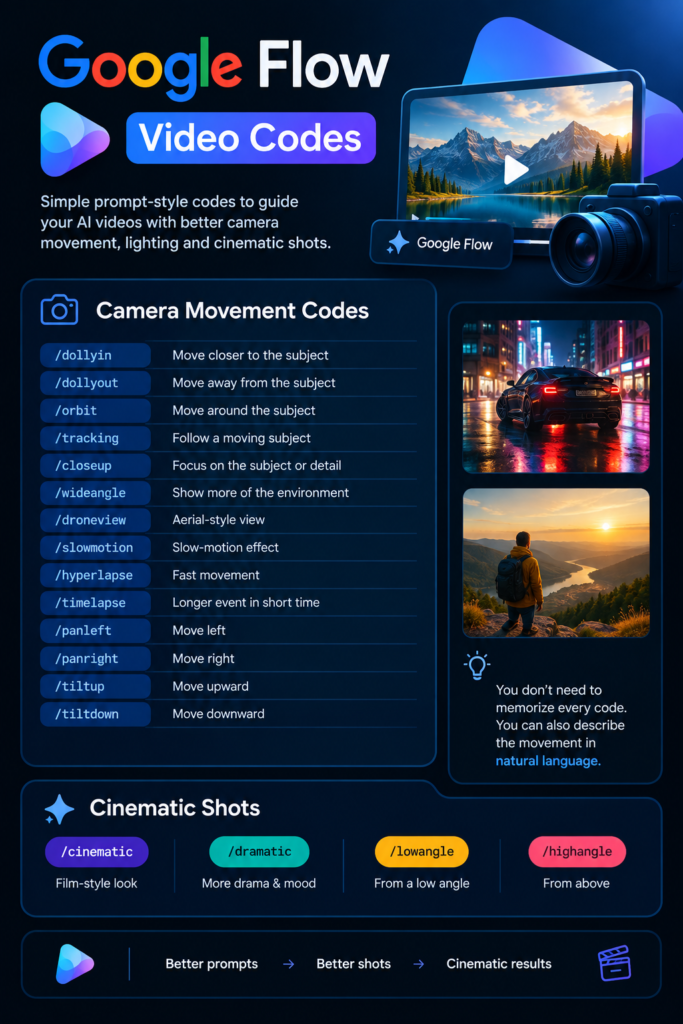
Here are some useful camera-related Google Flow Video Codes and prompt ideas.
| Code | What It Means |
|---|---|
/dollyin | Slowly move the camera toward the subject |
/dollyout | Move the camera away from the subject |
/orbit | Move the camera around the subject |
/tracking | Follow a moving subject |
/closeup | Focus closely on the subject or detail |
/wideangle | Show more of the surrounding environment |
/droneview | Create an elevated aerial-style view |
/slowmotion | Give the movement a slow-motion feel |
/hyperlapse | Create fast movement through a location |
/timelapse | Show a longer event in compressed time |
/panleft | Move the camera toward the left |
/panright | Move the camera toward the right |
/tiltup | Move the camera upward |
/tiltdown | Move the camera downward |
The important thing is not memorizing every code. You can describe the same movement in normal language. Google Flow’s official guidance encourages detailed natural-language descriptions rather than requiring a fixed command system.
Example: Dolly In
A young man stands beside a vintage car on an empty road at sunset. Slowly move the camera toward him while keeping his face sharp. Warm sunlight creates a soft glow around the car. Cinematic and emotional mood.
This works well for introductions, emotional moments and product reveals.
Example: Orbit
A premium black smartwatch sits on a dark stone table. The camera slowly orbits around the watch while soft studio lights create reflections on the metal edges. Keep the watch sharp and centered throughout the shot.
An orbit is especially useful for products because it lets viewers see different sides without making the scene feel static.
Google Flow Video Codes for Cinematic Shots
If your goal is a cinematic-looking video, camera movement alone is not enough. You also need to think about framing, depth, lighting and atmosphere.
Try these prompt ideas:
/cinematic— film-style visual direction/closeup— detailed close shot/wideangle— wide environmental shot/lowangle— powerful low-angle perspective/highangle— elevated perspective/overhead— top-down composition/profile— side view of the subject/frontview— direct frontal composition/overtheshoulder— view from behind a character/macro— very close detail shot
For example:
A chef carefully places a freshly baked pizza on a wooden table. Use a close cinematic shot with shallow depth of field. The camera slowly moves toward the pizza while warm restaurant lighting creates a cozy atmosphere.
The difference is easy to notice. You are not just asking for a pizza video. You are giving the AI a small visual plan.
Google Flow Video Codes for Lighting
Lighting can change the entire mood of a video. The same person can look completely different under bright daylight, soft window light or dramatic night lighting.
Some useful lighting ideas include:
| Code / Prompt Idea | Best For |
|---|---|
/goldenhour | Warm sunset scenes |
/sunrise | Fresh morning visuals |
/bluehour | Moody evening scenes |
/studiolighting | Product and commercial videos |
/softlight | Beauty and portrait shots |
/hardlight | Strong shadows and dramatic scenes |
/rimlight | Highlighting subject edges |
/backlight | Glowing silhouettes |
/spotlight | Focusing attention on one subject |
/moonlight | Night and emotional scenes |
/neonlight | Cyberpunk and urban visuals |
/candlelight | Warm intimate scenes |
For a beauty product, for example:
A glass skincare bottle stands on a white marble surface. Soft morning light enters from the side while small water droplets sparkle around the bottle. Slow camera movement, clean luxury advertisement style, realistic reflections.
This combines the product, lighting, environment and movement instead of relying on one generic instruction.
Google Flow Video Codes for Product Ads
This is one of the most useful areas for Google Flow Video Codes because AI video can turn a simple product image into a more interesting advertisement concept.
Useful product prompt ideas include:
/producthero— make the product the main focus/productcloseup— focus on product details/productrotation— show different sides/product360— create a rotating showcase/productfloating— make the product appear suspended/productreveal— reveal the product dramatically/lightSweep— move light across the product/macroProduct— highlight small details/luxuryProduct— premium commercial feel/productInNature— place the product outdoors/productInSpace— futuristic product environment/productUnderwater— underwater concept/productInTheClouds— dramatic sky environment
Competitor research shows similar product-ad concepts being grouped around hero shots, environments, textures, lighting, camera movements and transitions. That category-based approach is useful because you can build one complete prompt by combining a few ideas instead of stuffing dozens of instructions into one request.
Product Ad Example
A premium wireless headphone sits on a polished black surface in a dark studio. The camera slowly pushes toward the headphones while a soft light sweeps across the metal details. Subtle smoke moves in the background. Luxury technology commercial, realistic materials, shallow depth of field.
This type of prompt gives Flow a clear subject, action, camera movement, lighting and mood.
Google Flow Video Codes for Nature Scenes
Nature scenes can become much more interesting when you add controlled camera movement.
Try ideas such as:
/forest— dense natural environment/ocean— coastal or underwater setting/mountains— large landscape/desert— open cinematic environment/rain— rainy atmosphere/snow— winter environment/wind— visible environmental movement/flower— floral environment/waterdrop— macro water detail/sunset— warm evening atmosphere
For example:
A lone traveler walks along a mountain path early in the morning. Mist moves slowly between the trees while sunlight breaks through the clouds. The camera follows the traveler from behind and gradually rises to reveal the mountains in the distance.
This is much more specific than simply asking for a “beautiful mountain video.”
Google Flow Video Codes for Action Scenes
Fast scenes need clear movement. If you give Flow too many unrelated actions, the result can become messy.
Useful action ideas include:
/tracking— follow a moving subject/fastpushin— quickly approach the subject/whippan— fast side movement/handheld— natural handheld feel/slowmotion— dramatic slow movement/dronefollow— aerial follow shot/lowangle— powerful action perspective/dynamiccamera— energetic camera direction
Action Scene Example
A motorcycle races through a narrow city street after rain. The camera tracks alongside the motorcycle from a low angle. Water splashes from the tires and neon signs reflect on the wet road. Fast cinematic movement with realistic motion blur.
The key is to keep the main action simple. One strong action usually works better than five different actions happening at the same time.
Google Flow Video Codes for Transitions
Transitions become useful when you are creating several clips for one video.
Some creative transition ideas include:
/liquidtransition/smoketransition/firetransition/icetransition/glasstransition/lighttransition/flashtransition/particletransition/zoomtransition/whippantransition/matchcut
These can be used as creative prompt instructions rather than assuming they are official built-in slash commands.
For example:
A red sports car fills the frame as the camera moves closer. Transition into a new scene by matching the red color with a sunset over a mountain road. Keep the movement smooth and cinematic.
Google Flow also supports start and end frames, which can be useful when you want a video to move between two specific visual states. You can provide the beginning and ending images and describe the action or transition between them.
How to Write Better Google Flow Prompts
One of the easiest ways to improve your results is to stop thinking only about “keywords” and start thinking about the complete shot.
A simple formula is:
Subject + Action + Environment + Camera + Movement + Lighting + Style + Mood
For example:
A young woman rides a bicycle through a quiet European street at sunrise. The camera tracks beside her at a low angle. Warm golden light reflects from the windows and soft morning fog fills the background. Realistic cinematic style with natural movement.
Here is what each part does:
Subject: Who or what is in the scene?
Action: What is happening?
Environment: Where is the scene taking place?
Camera: From which angle should we see it?
Movement: How should the camera or subject move?
Lighting: What kind of light should be present?
Style: Realistic, cinematic, animated, commercial or something else?
Mood: Calm, exciting, mysterious, emotional or luxurious?
This structure is closely aligned with Google’s own guidance for detailed prompts.
How to Use Google Flow Video Codes
Using these ideas is fairly simple.
1. Start With Your Main Subject
First decide what the video is about. It could be a person, car, product, animal, building or landscape.
Do not start with ten effects. Start with the main thing you want viewers to notice.
2. Add the Action
Tell Flow what should happen.
For example:
A coffee cup sits on a wooden table.
Then make it more active:
Steam slowly rises from a hot coffee cup while sunlight moves across the table.
Now the scene has life.
3. Choose a Camera Movement
Add something like a slow push-in, tracking shot or orbit.
The camera slowly pushes toward the coffee cup.
4. Add Lighting
Now decide how the scene should feel.
Warm morning sunlight enters through a nearby window.
5. Add the Style
Finally, tell Flow what kind of visual you want.
Realistic cinematic coffee advertisement with shallow depth of field.
The complete prompt now feels like an actual shot description instead of a random collection of keywords.
Using Images With Google Flow
You do not always have to start from text alone. Google Flow lets you use reference images and other visual ingredients in your prompts.
This can be useful when you need a particular character, product or visual element to remain consistent. Google recommends using clean subject or product references, preferably on plain or segmented backgrounds.
For example, if you have a photo of a shoe, you can use it as a reference and describe the scene around it:
Use the uploaded sneaker as the main product. Place it on a wet city street at night. The camera slowly circles around the shoe while neon reflections move across the surface.
This can be more useful than describing the product from scratch.
Google Flow Video Codes for Social Media Videos
Short-form content needs to grab attention quickly. You usually do not have several minutes to slowly explain what is happening.
For a short social video, you can try a structure like this:
Scene 1: Close-up product shot
Scene 2: Fast camera movement
Scene 3: Wider reveal
Scene 4: Final product hero shot
For example:
Close-up of a luxury perfume bottle with tiny water droplets on the glass. The camera slowly pushes closer. Quickly transition to a wide shot of the bottle surrounded by fresh flowers. Finish with a clean centered hero shot under soft studio lighting.
This gives you a simple story rather than four unrelated clips.
Google Flow Video Codes for Cinematic Storytelling
If you are making a short film, think beyond individual shots.
A character walking into a dark room could start with a wide shot. Then you can move to a tracking shot. After that, use a close-up to show the character’s reaction.
For example:
Wide shot of a young detective entering an abandoned hotel hallway at night. The camera slowly follows behind him. Flickering ceiling lights create long shadows. Cut to a close-up of his face as he notices a mysterious door at the end of the hallway.
The camera changes because the story needs it to change. That is more effective than adding random effects simply because they look cinematic.
Google Flow Video Codes for Voice and Characters
Google Flow also supports reference-based workflows for characters and voices. You can use @ to reference a saved character and describe how that character should appear in the scene. Google also documents voice references and custom voice options for supported workflows and models. If you are exploring creative AI tools alongside apps such as JelloChat APK, keeping these reference features in mind can help you understand how different apps approach personalized digital experiences.
For character consistency, you could write:
@Detective walks through a rainy city street at night. Keep the same clothing, hairstyle and facial appearance. The camera follows from behind before slowly moving to a side profile.
This can be especially useful when you are creating multiple scenes around the same character.
Common Mistakes When Using Google Flow Video Codes
Using Too Many Instructions
More instructions do not always mean a better result.
If one prompt contains ten camera movements, five lighting styles and several different environments, the model has too many things to balance.
Start with two or three important directions and build from there.
Making the Prompt Too Short
The opposite problem is also common.
“Make a cinematic car video” gives very little direction. Tell Flow what car, where it is, what it is doing and how you want the camera to behave.
Conflicting Instructions
Do not ask for a dark night scene with bright midday sunlight unless that contrast is intentional.
Google also recommends making sure your text prompt complements rather than contradicts your visual references.
Changing Everything at Once
If the first result is close but not perfect, change one or two things instead of rewriting the entire prompt.
For example:
Keep the same scene and camera movement but change the lighting to warm sunset light.
This makes the refinement process easier.
Are Google Flow Video Codes Official Commands?
This is an important point.
You will find many websites publishing lists of Google Flow commands with slash formats such as /orbit, /dollyin, /tracking and /cinematic. These can be useful creative shortcuts, but they should not all be considered official Google Flow commands.
Google’s own help documentation focuses on describing the subject, action, environment, lighting and style in natural language. It also provides actual interface controls and features for things such as ingredients, frames, camera movement and video editing.
So if a code does not work exactly as written, do not assume Flow is broken. Simply convert the idea into a normal sentence.
For example:
Code idea:/orbit
Natural prompt:
Slowly move the camera in a smooth circle around the product while keeping the product centered and sharp.
The second version is clear even without a special command.
Google Flow Video Codes for Beginners
If you are completely new to AI video generation, do not start with a huge list.
Start with these five ideas:
- Close-up — focus attention on an important detail.
- Dolly in — slowly move toward the subject.
- Tracking — follow a moving subject.
- Orbit — move around a subject.
- Wide shot — show the subject and its environment.
Once you understand these, add lighting and transitions.
This makes learning much easier because you can see what each instruction actually changes.
Can You Combine Google Flow Video Codes?
Yes, you can combine different creative directions in one prompt.
For example:
A luxury watch sits on a black marble table. Use a slow camera orbit combined with a gentle push-in. Soft studio lighting highlights the metal edges while a dark background creates a premium commercial mood.
Here you have:
- Product shot
- Orbit movement
- Push-in
- Studio lighting
- Premium mood
You do not need to throw twenty different instructions into the same prompt.
A good starting point is one subject + one main action + one camera movement + one lighting style. You can add more after seeing the first result
Google Flow Video Codes for Product Photography
AI video can also help turn a still product image into something more dynamic.
Imagine you have a simple photo of a perfume bottle. Instead of uploading it and asking for “a video,” you could describe:
Animate the perfume bottle from the uploaded image. Keep its shape, label and color unchanged. Slowly move the camera from a front view to a slight side angle. Add soft golden light and subtle floating particles in the background. Premium fragrance advertisement.
Google Flow supports animating images and creating videos from text prompts, ingredients and frames.
This is where AI video becomes genuinely useful for small businesses and creators. You can take a basic product image and experiment with different visual concepts without filming every version manually.
Google Flow Video Codes for YouTube
For YouTube content, you can use different camera styles depending on the type of video.
A travel video might use aerial and tracking shots. A technology review might use close-ups and slow product movements. A story video can use wide shots for locations and close-ups for emotional moments. For finance-related content, such as explaining an EMI Loan Calculator, clear close-up shots of the calculator and screen can make the steps easier for viewers to follow..
For example:
A modern smartphone rests on a clean desk in a dark studio. Start with a wide shot of the desk, then slowly push toward the phone. Move into a detailed close-up of the camera module while soft blue light reflects across the glass surface. Premium technology review style.
This gives you several shots that can later be arranged into a larger sequence.
Google Flow’s desktop tools also include scene building, where clips can be arranged, reordered and trimmed into a sequence.
Tips for Better Google Flow Video Results
Use Clean Reference Images
If you are using a product or character as a reference, start with a clear image. A messy background can make it harder to get the result you want.
Keep the Main Subject Clear
Tell Flow what deserves the viewer’s attention. If everything is equally important, the video can feel unfocused.
Describe Movement Clearly
Instead of saying “make it cinematic,” explain what the camera should actually do.
For example:
Slowly track alongside the runner from a low side angle.
That is much more useful.
Make Lighting Part of the Scene
Do not treat lighting as an afterthought. “Warm sunset light” and “cold fluorescent lighting” create very different moods.
Generate Variations
Your first generation does not have to be perfect. Try a few versions with different camera movements or lighting choices and compare them.
Google Flow also supports creating multiple outputs and refining videos with additional prompts in supported workflows.
Best Google Flow Video Codes to Start With
If you just want a quick list to test, start here:
| Google Flow Video Code | Good For |
|---|---|
/dollyin | Product reveals |
/dollyout | Scene reveals |
/orbit | Product showcases |
/tracking | Walking and running |
/closeup | Product details |
/wideangle | Landscapes |
/droneview | Travel videos |
/slowmotion | Beauty and action |
/lowangle | Powerful subjects |
/overhead | Food and products |
/goldenhour | Lifestyle videos |
/studiolighting | Commercials |
/neonlight | Night city scenes |
/rain | Moody scenes |
/whippan | Fast transitions |
Again, treat these as creative prompt ideas, not a guaranteed official command dictionary.
Final Thoughts
Google Flow Video Codes can make AI video creation easier when you use them as a way to think about your shots. You do not need to memorize hundreds of commands. What matters more is understanding camera movement, lighting, composition, action and mood.
The best results usually come from simple but detailed prompts. Start with your subject, explain what it is doing, describe the environment and then add the camera movement and lighting you want. This works in a similar way when trying an AI Hairstyle Generator, where clear details about the desired look can help create a more useful result.
And if a slash-style code does not work, simply write the instruction in normal English. Google Flow is designed to understand natural-language creative direction, so you can still get the same visual idea without relying on a special command.
For beginners, that is probably the easiest way to use Google Flow Video Codes: think like a filmmaker first and worry about the codes second.
Frequently Asked Questions

Hi, I’m Vikram Ashwin, a technology writer who enjoys covering useful apps, digital tools, photo editing trends, and the latest tech topics. My goal is to share clear information, useful tips, and straightforward explanations without unnecessary technical language.